Welcome to ShiftBID! Getting your team onto the platform is a simple two-part process. This guide covers how an Administrator sends an invitation and what the Employee sees on their end.
Part 1: The Administrator Process
Follow these steps to grant an employee access to their ShiftBID portal:
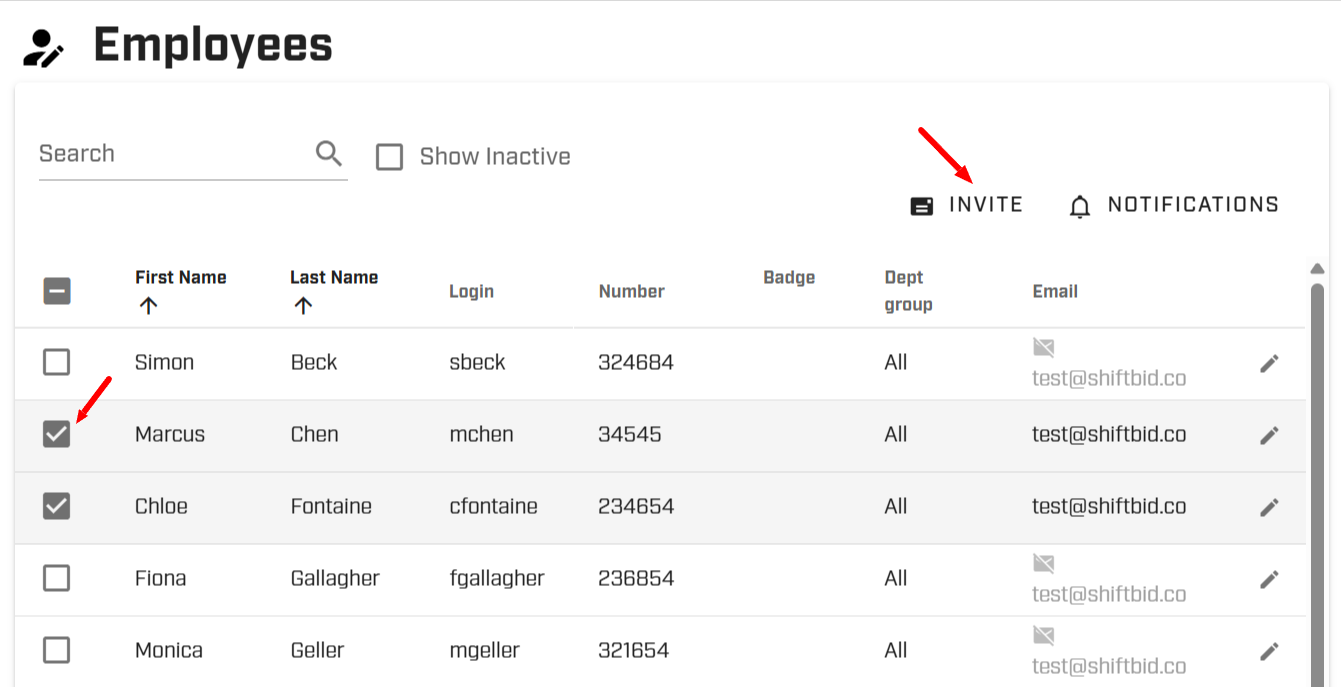
- Navigate to Settings: Go to Menu > Setup > Employees.
- Select Employee(s): Check the box next to the name of the employee you wish to invite.
- Check Notifications: Ensure the employee's notifications are enabled. If they are disabled, click the Notifications button to toggle them on.
- Send Invite: Click the Invite button.
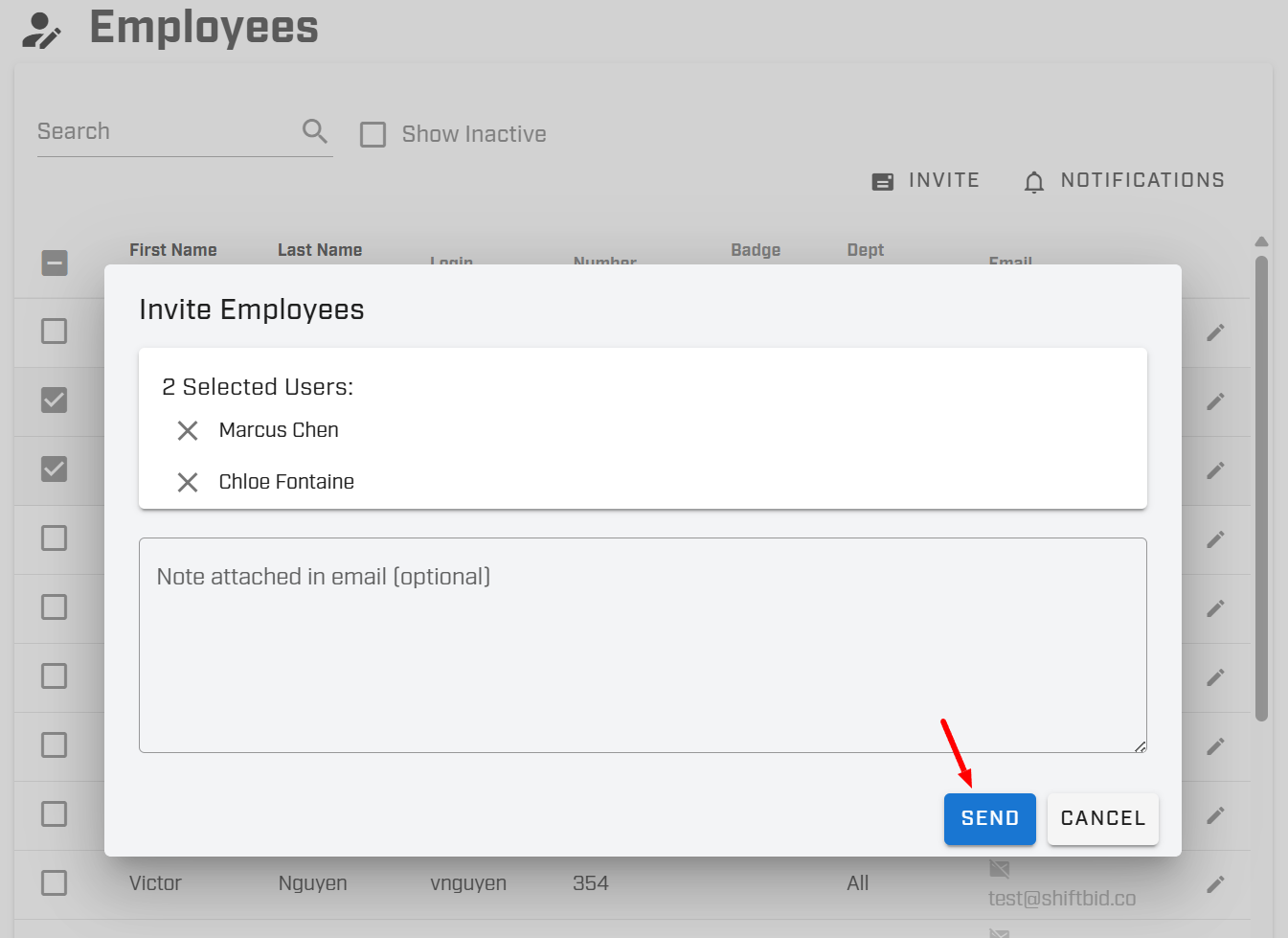
- Personalize (Optional): You may add a personal note to the invitation email to provide extra context for your staff.
- Confirm: Click Send.
Part 2: The Employee Invitation Process
Once the admin clicks send, the employee will complete the following steps to secure their account:
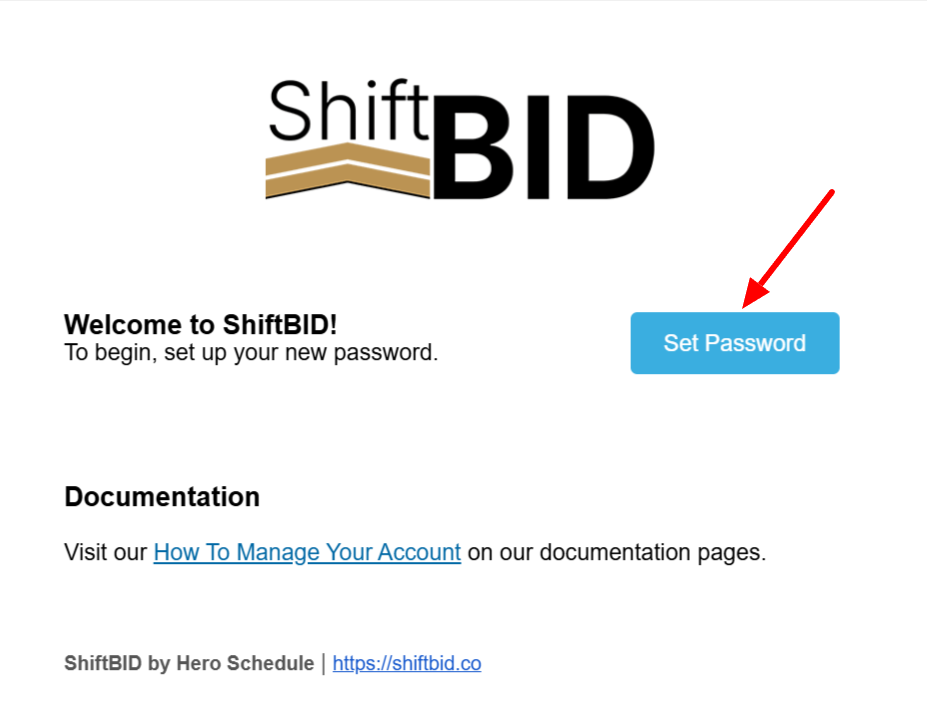
Step 1: Open the Invitation
The employee will receive an email from ShiftBID. They should open the email and click the blue Set Password button.
Step 2: Verify Identity
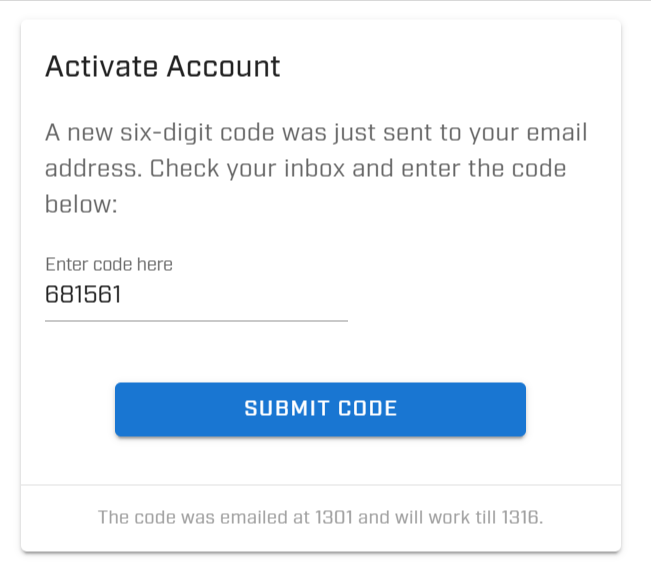
For security, the employee will be redirected to a verification page.
- A 6-digit verification code will be sent to their email automatically.
- Enter the code into the box and click Submit Code.
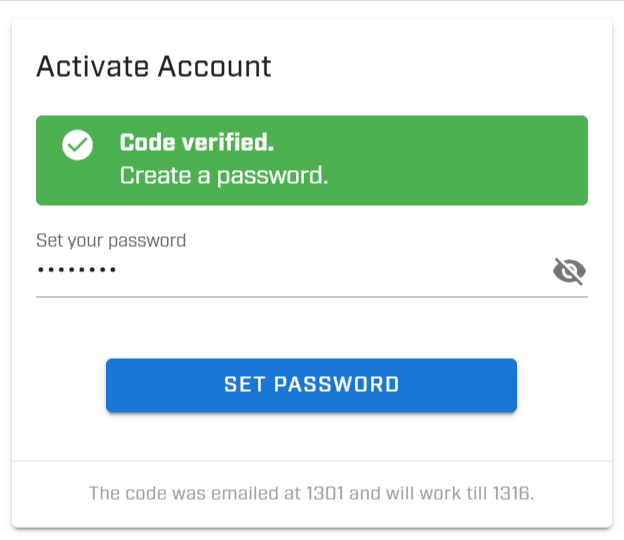
Step 3: Secure the Account
After the code is verified, the employee will be prompted to:
- Create a strong, unique password.
- Click Set Password to save changes.
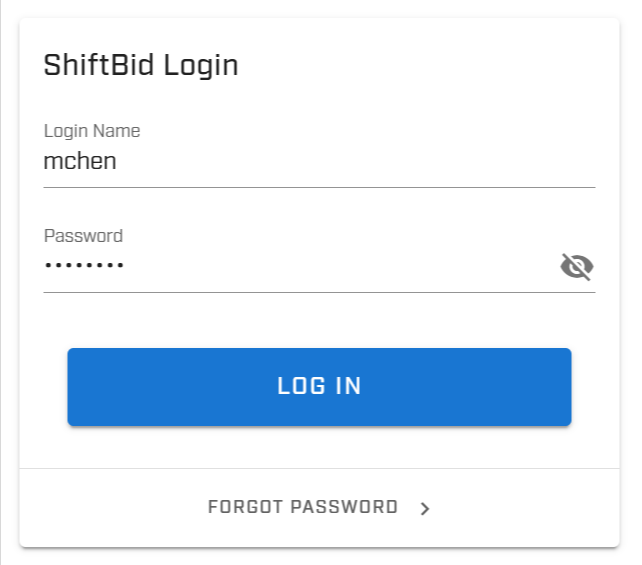
Step 4: Log In
The setup is now complete! The employee can immediately log in using their Username and the New Password they just created.
Was this article helpful?
That’s Great!
Thank you for your feedback
Sorry! We couldn't be helpful
Thank you for your feedback
Feedback sent
We appreciate your effort and will try to fix the article