A role is a named set of permissions you assign to employees. ShiftBID uses five permissions. Hero Schedule has many more, but only the ones that apply to bidding appear in ShiftBID.
Employees whose roles have none of these permissions are bidders. New employees get the Basic User role unless someone chooses otherwise. To create or change roles, go to Menu > Employee Roles (requires Organization Administrator).
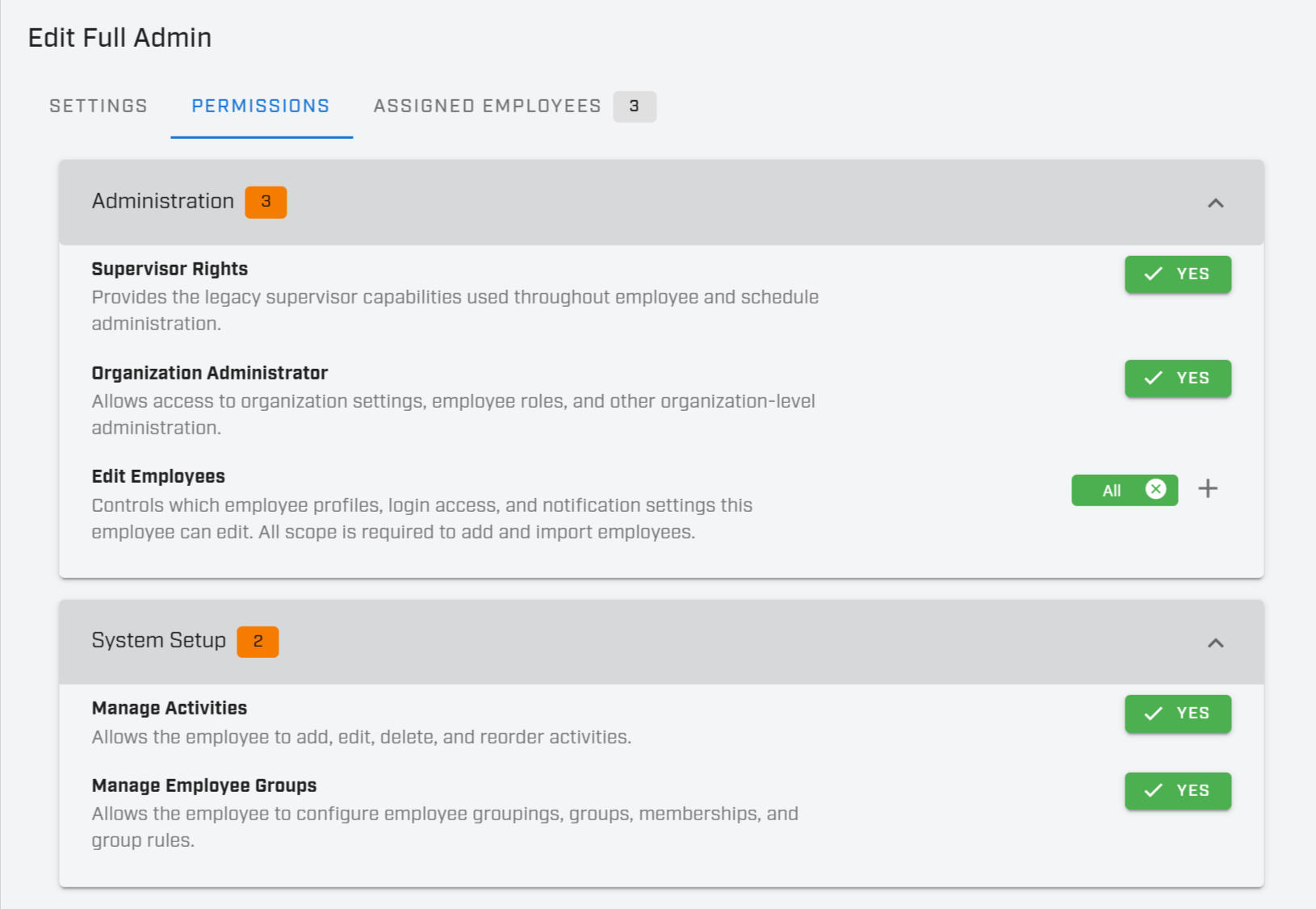
At a glance
| Permission | What it lets someone do in ShiftBID |
|---|---|
| No permissions (bidder) | See the bids they are part of, place or rank their own bids, and manage their own password, cell number and notifications. |
| Supervisor Rights | Set up bid schedules, start bidding, see every bid and its results, override assignments, export results, and activate the final schedule. |
| Organization Administrator | Create, edit and delete roles, assign roles to employees, and manage Organization Settings. |
| Edit Employees | Add, edit, import and deactivate employees, including login access, notifications, Begin Date (seniority) and groups. Works together with Supervisor Rights. |
| Manage Activities | Add, edit, delete and reorder the activities shown on bid lines. |
| Manage Employee Groups | Create groups and groupings and manage memberships. Groups decide who is eligible to bid on which lines. |
Bidders (no permissions)
Everyone can bid, even with no permissions. Bidders open ShiftBID on the Shift Bidding page.
- See only the bids they are part of, once bidding or pre-bidding has started.
- Take a shift on their turn, or submit and update a ranked list of choices.
- Load their previous ranked choices or copy them from a past bid.
- Filter shifts by activity or group. Shifts they are not eligible for are marked or hidden.
- Change their own password, cell number and bid notifications under User Settings.
Bidders cannot bid for anyone else, and they cannot see overrides, other bidders' status or the Excel download.
Supervisor Rights
Supervisor Rights is the permission that runs bidding. It adds Set up Schedules to the menu.
- Create, edit, upload, archive and delete bid schedules.
- Set bid requirements and preview who would become ineligible.
- Open the Shift Bidding settings: message, bid type (ranked or turn-based), bidder order by seniority or manual order, bidders, phases and shift filters.
- Begin bidding now or schedule it to start automatically.
- See every bid in progress, view each bidder's choices, and override ranked assignments.
- Download bid results to Excel.
- Activate the finished schedule, which notifies bidders of their results.
Supervisor Rights is also required for any employee administration (see Edit Employees).
Organization Administrator
Organization Administrator controls who can do what. It adds Employee Roles and Organization Settings to the menu.
- Create, rename, copy and delete roles, and choose each role's permissions.
- Assign roles to employees one at a time or in bulk, and choose roles when adding an employee.
- View or download the permission matrix and each employee's effective permissions.
- Set the organization's default reply-to email address in Organization Settings.
Edit Employees
Edit Employees controls which employee records someone can change. It adds Employees to the menu. Give it together with Supervisor Rights; without Supervisor Rights the Employees page will not load.
Each role picks a scope:
| Scope | Who can be edited |
|---|---|
| All | Every employee. Required to add employees in any group, import employees and turn notifications on or off in bulk. |
| A specific group | Employees in that group. Can add employees to that group. |
| Member Group | Employees in the same group as the editor. |
| Role Scope | Employees covered by the scope set when the role was assigned. |
| Self | Only their own record. |
Within scope, an editor can change:
- Name, title, email and cell number
- Login name, password, invitation and whether the employee can log in
- Employee number and badge number
- Begin Date, which sets seniority order for bidding
- Group membership
- Whether all notifications are turned off
- Active or inactive status
An editor cannot give someone a wider Edit Employees scope than their own.
Manage Activities
Manage Activities adds Activities to the menu.
- Add, edit, delete and reorder activities, and add sub-activities in bulk.
- Activities appear in the Activity column of each bid line, and bidders can filter shifts by them.
Manage Employee Groups
Manage Employee Groups adds Groups to the menu.
- Create and delete groupings and groups.
- Add and remove members, effective as of a date.
- Groups decide bid eligibility: bid requirements say which groups may bid on a set of lines or shifts.
- Groups also define the group scopes used by Edit Employees.
Common role setups
| Role | Permissions | Good for |
|---|---|---|
| Basic User | None | Employees who only bid. New employees get this role automatically. |
| Bid Manager | Supervisor Rights, Edit Employees (All), Manage Employee Groups | People who run bids and keep employees and bid groups current |
| Full Admin | All five | The account owner and anyone who manages roles, groups and activities |
An employee can hold more than one role; they get every permission from all of their roles.
Was this article helpful?
That’s Great!
Thank you for your feedback
Sorry! We couldn't be helpful
Thank you for your feedback
Feedback sent
We appreciate your effort and will try to fix the article